To keep your account safer from scammers and reduce all the scam texts and emails everyone is getting, we are improving the security of all accounts by integrating with Google Authenticator.
The Google Authenticator app ties itself to your STG login, and we'll sometimes ask you to enter the 6-digit number from the app when you log in.
You need a Google account for this. If you don't have one, sign up with Google here.
Step 1: Install Google Authenticator
If the links are broken, just search "Google Authenticator" in your store.
Step 2: Go to Your Security page
Click HERE to go to Your Security in your account
Step 3: Add STG to Google Authenticator
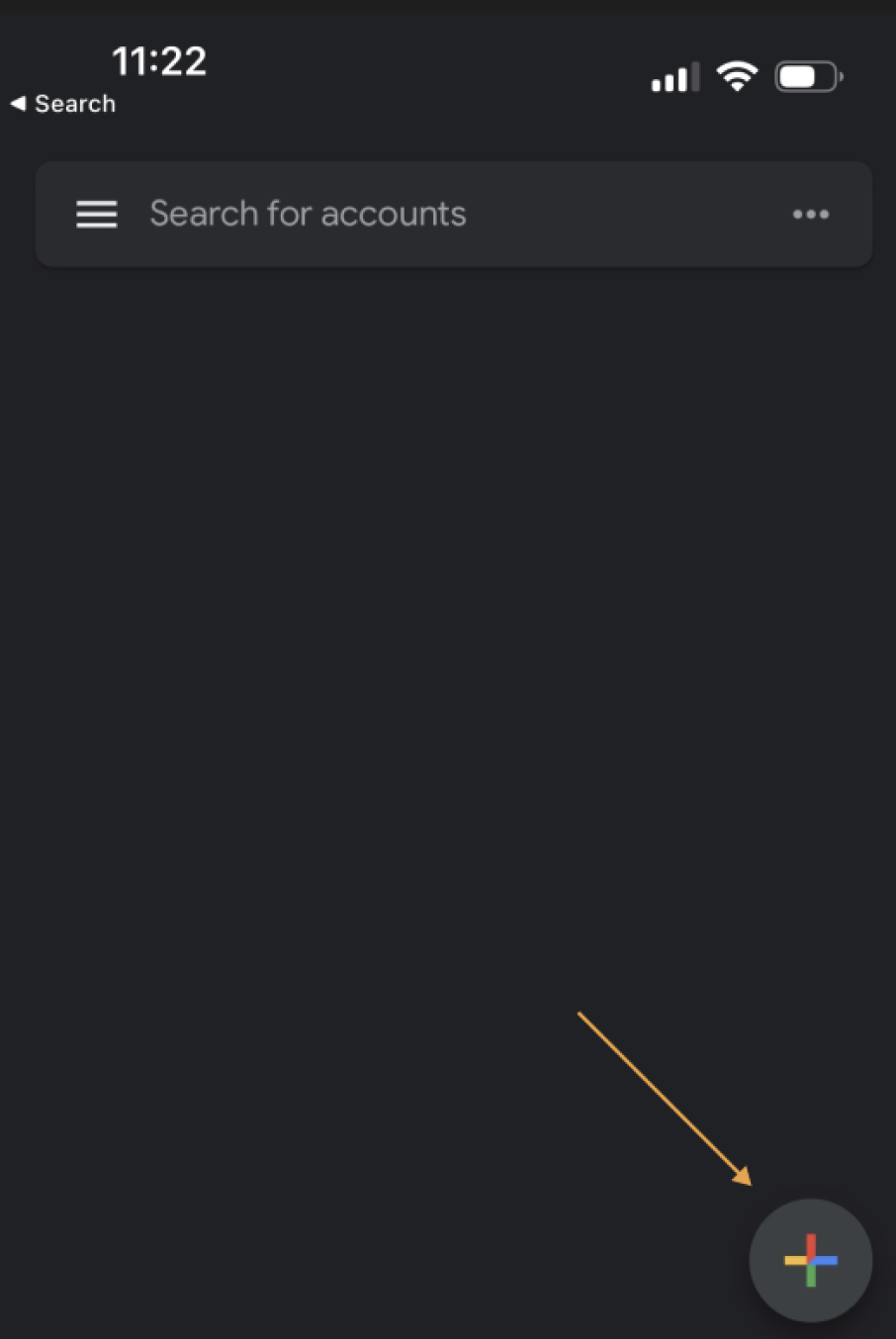
Once downloaded from one of the links above, open the app and cick the plus sign:
Scan the QR code that you opened in previous step.
If you cannot scan the code, use "Enter a Setup Key" option and type in the long line of characters from Step 3.
The app will now generate a 6-digit code that refreshes every 30 seconds.
Step 4: Use code on next login
Next time when you log in, enter your usual email address and password.
On your phone, open your Google Authenticator app anc copy the code generated for your STG account:
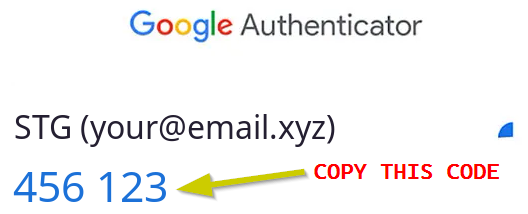
Note that the code will change every 30 seconds and your email address will be the one that you use to log in.
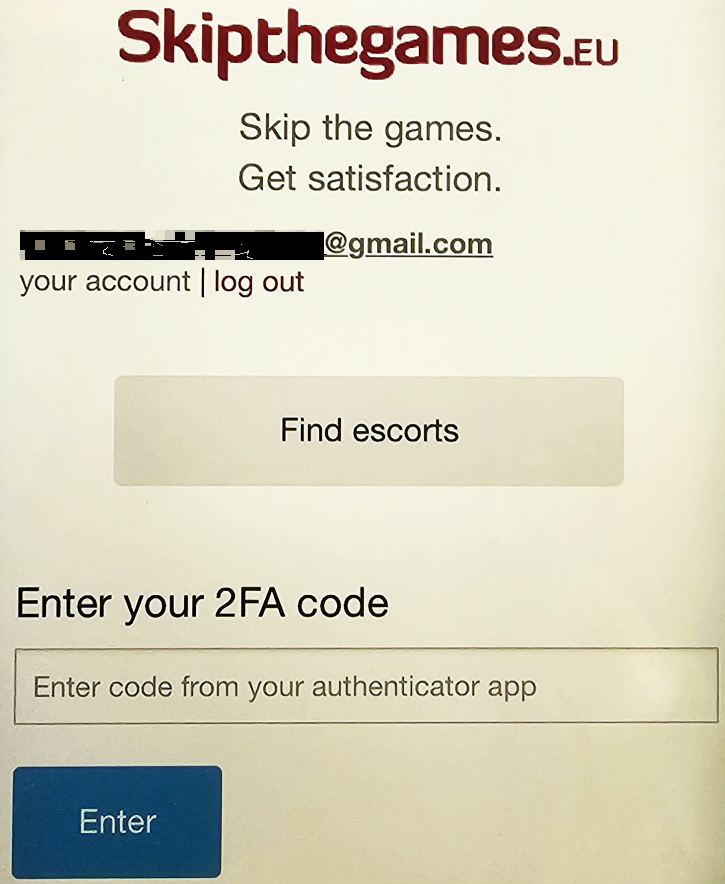
When our site asks you to enter code, paste or type the code that your app generated for STG: